Community Corner
How to Find More Local News on the Bulletin Board, Post Content and Add Instagram Photos
Your friends and neighbors have something to say on the Bulletin Board. You can, too. We'll tell you how. You can add Instagram photos, too.


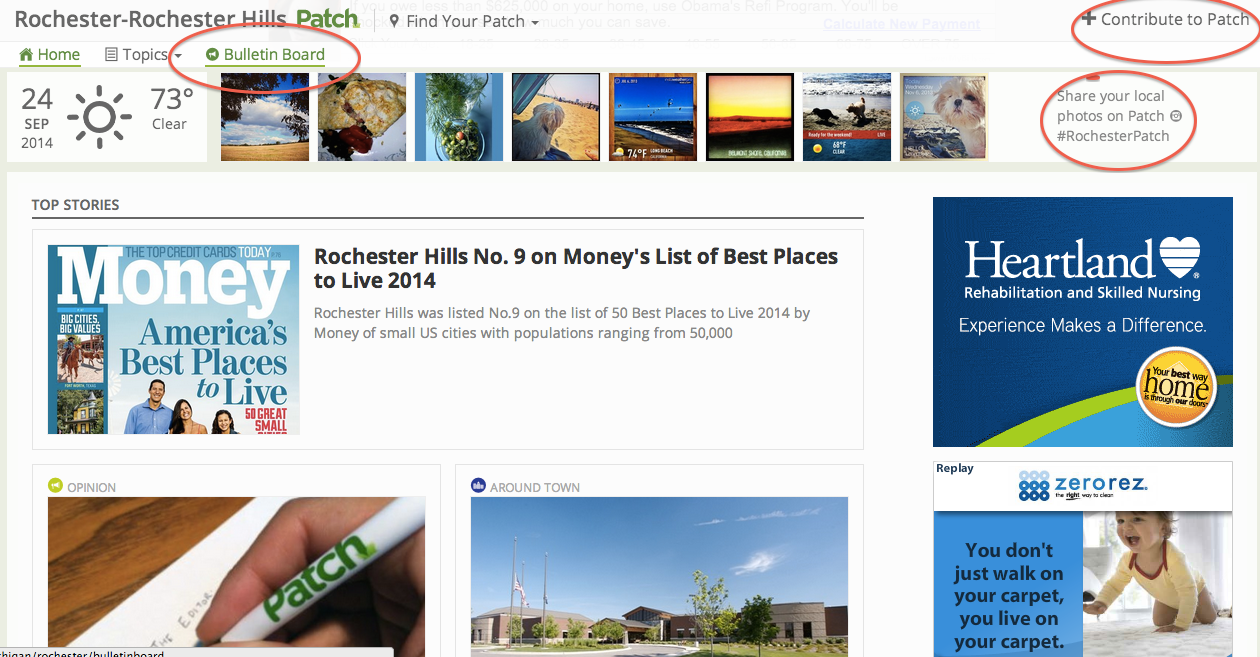
Three user-interaction opportunities are found on the home page of every Patch. They’re circled in red: “Bulletin Board,” “Contribute to Patch” and a call-out to share local photos from your Instagram accounts with readers. (Screenshot: Patch.com)
____________________________
As you’re perusing the new platform, you may be missing some of the hyperlocal content that is one of Patch’s hallmarks.
Find out what's happening in Clawsonfor free with the latest updates from Patch.
There is plenty of content available on Patch, just not where you’re accustomed to seeing it. Find it on the Bulletin Board: http://patch.com/michigan/YOURPATCH/bulletinboard.
Check the Bulletin Board every day for calendar announcements and meeting notices, stories about things going on around town and accomplishments of people you know, and personal blogs that will make you smile or think.
Find out what's happening in Clawsonfor free with the latest updates from Patch.
We’d love to have your contributions there, too.
Please go to http://contribute.patch.com and login to the site with your Patch account. If you’ve never logged in to the new Patch 3.0, you may need to enter your old password and then create a new one. (It’s just to prove you’re a human!) If you’re receiving an error message, file a ticket at http://support.patch.com.
New users must create accounts by filling out a new user request form at http://support.patch.com. Why? Because only verified users will be posting content on Patch. So give us some information – your email address, why you want to post, choose “create an account” from the drop-down menu, and our Support Team will get back to you.
After you’ve logged in, you will be brought to a page called Contributions. You will see all of the content you have posted to Patch on this page and the following page. From there, you can edit or delete a previous post, or start a new one by clicking the “+ Create Article” button.
When creating a post, you will need to follow these steps:
- Assign your community in the right corner of the page. You will need to start typing the name of your community and it will appear. Click it when it appears to “assign it.”
- Enter your title (headline), article text (including a summary) and add a photo. Don’t see a preview? Don’t worry. Make sure it says “image received” under the photo box.
- Writing Tips: Don’t use all caps, please. But do capitalize the first letter of each word in the headline only. Keep headlines short to improve the likelihood our many mobile users will open your post.
- Click “Publish” – Your article is automatically approved and will be posted on the Bulletin Board! Be patient, you may not see your article at once. Do not publish it more than once, or you will see it appear many times. If you think the story should immediately go to the homepage, send an email and link to michigan@patch.com with the subject line “Elevate Post.”
- Oops! There’s a mistake in your post? You can now edit your own stories while you are reading them. If you are on your local Patch and are looking at one of your stories, click the small “P” icon next to the dateline. Click that to access “Moderation Mode.”You will be brought back to Contribute.Patch.Com to make your edits or deletions. You do not have access to edit anyone else’s stories, just your own.
Please note that our Calendar and Events sections are currently under construction. You may still post events by following the steps above and listing them in the Bulletin Board. We hope to have a robust Calendar for you in a few weeks.
Our new format also has a new commenting feature. But, don’t worry, all the details on how to comment are here. Just click to learn how to comment.
If you have any technical problems, please submit a support ticket at: http://support.patch.com.
Instagram Feeds on the Home Page
If you’re out and about and see something interesting going on, it’s easy to make your photos feed to the top of your local Patch home page. Be patient. It may take a bit of time for the feed to load. If you’d like to tag any of the Michigan Patches, here are the hash tags:
- Bloomfield-Bloomfield Hills Patch: #BloomfieldMIPatch
- West Bloomfield Patch: #WestBloomfieldPatch
- Birmingham Patch: #BirminghamPatch
- Rochester-Rochester Hills Patch: #RochesterPatch
- Farmington-Farmington Hills Patch: #FarmingtonMIPatch
- Novi Patch: #NoviPatch
- Northville Patch: #NorthvillePatch
- Royal Oak Patch: #RoyalOakPatch
- Ferndale Patch: #FerndalePatch
- Huntington Woods-Berkley Patch: #HuntingtonWoodsPatch
- Clawson Patch: #ClawsonPatch
- White Lake-Highland Patch: #WhiteLakePatch
- Oakland Township-Lake Orion Patch: #OaklandTownshipPatch
- Troy Patch: #TroyPatch
- Dearborn Patch: #DearbornPatch
- Wyandotte Patch: #WyandottePatch
- Plymouth-Canton Patch: #PlymouthMIPatch
- Grosse Pointe Patch: #GrossePointePatch
- Trenton-Grosse Ile Patch: #TrentonGrosseIlePatch
- Macomb Patch: #MacombPatch
- Clinton Township Patch: #ClintonTownshipPatch
- New Baltimore-Chesterfield Patch: #NewBaltimorePatch
- St. Clair Shores Patch: #StClairShoresPatch
- Shelby-Utica Patch: #ShelbyPatch
- Chelsea Patch: #ChelseaPatch
- Dexter Patch: #DexterPatch
- Saline Patch: #SalinePatch
- Fenton Patch: #FentonPatch
- Brighton Patch: #BrightonPatch
- HartlandPatch: #HartlandPatch
We’ll see you on Patch. If you have questions, don’t hesitate to email beth.dalbey@patch.com.
Get more local news delivered straight to your inbox. Sign up for free Patch newsletters and alerts.