Health & Fitness
Everyday Tips from the ComputerMom: Surviving Windows 8
I have been seeing more Windows 8 systems out there, and many people find the transition difficult. Here are some of the modifications I make to my client's system to shorten the learning curve.



I have been seeing more Windows 8 systems out there, and many people find the transition difficult. This post details some of the modifications I make to my client's system to shorten the learning curve. If you or anybody you know is struggling with Windows 8, it only takes a one hour appointment with me to make the system easier to use!
Find out what's happening in Medfieldfor free with the latest updates from Patch.
I want my Start Button!
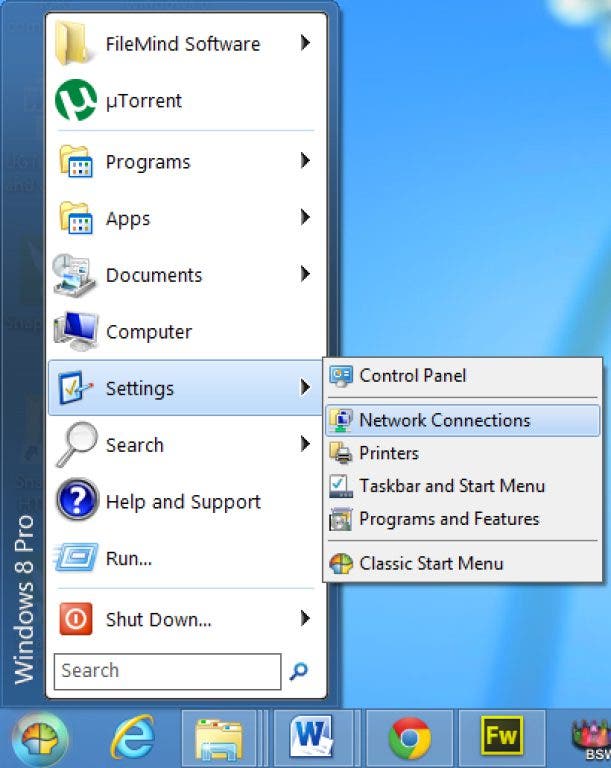
The most obvious change Microsoft made with Windows 8 is replacing the start button with an entire screen of tiles, called the Start Screen. This works nicely if you have a touch screen system, and if you do, I recommend just knuckling down and getting used to it. However, if you are still only using a mouse or touch pad to get around in Windows, the tiles of the start screen are difficult to navigate.
Find out what's happening in Medfieldfor free with the latest updates from Patch.
Fortunately there are several software solutions to this issue. What I have been using is a free software program called Windows Classic Shell that will put a start button back on your desktop. I have been installing it on every Windows 8 system that doesn't have a touch screen, and it works very well. You can use it to turn off all the Start Screen features of Windows 8, or simply to add a start menu to the desktop screen.
Even if you plan to continue using the Start Screen the Classic Shell start menu makes your desktop more familiar and usable - I highly recommend it!
What happened to Internet Explorer??
Another major change in Windows 8 is the inclusion of not one but two versions of Internet Explorer 10, one on the Start Screen and the IE you are more familiar with on the Desktop.
Microsoft says that the new Internet Explorer is more usable than ever, but I have yet to find a single person who agrees. Most people find this version confusing, with an address bar that appears or disappears on the bottom of the screen and no obvious way to shut it down or open a new window. To further complicate matters, Windows decides for you which version of Internet Explorer you will use depending on where you click on a link, so you never know which version you will be faced with. Fortunately it's very easy to tell Windows 8 that you only want to use the desktop version of Internet Explorer. To set your preference you need to open Internet Properties, click on the Programs tab, and choose "Always in Internet Explorer on the desktop". More detailed instructions can be found here.
LibreOffice - the Free Alternative to Office 2013
Windows 8 is the first version of Windows that doesn't usually ship with a free or very low cost word processing program. Microsoft discontinued Works in 2009, replacing it with Office Starter, an advertising based minimal version of Word and Excel. Microsoft does not offer Office Starter with Windows 8, so now the casual user must either buy an expensive Office Suite or find an alternative.
If you are only a casual user of office software, and you don't need Outlook, I highly recommend trying LibreOffice before you make a commitment to buy Office 2013. Open source software, LibreOffice will do most of what the full Office Suite will do, at the very affordable price of free! It will open and edit any Office document that is sent to you as an attachment, and includes Word Processing, Spreadsheet, Presentation, Database and Graphics software.
Julie Marto, the ComputerMom, has been providing friendly and personal technical support and training in Medfield and neighboring communities for over 16 years. For more information visit http://www.thecomputermom.com/ or like her on Facebook
To read more blog posts from the ComputerMom click here.