Health & Fitness
Easy Steps to a More Secure Mac
You have heard that Macs are immune to computer viruses. Macs have a reputation for being easy to use and secure, so why not dive right in? But first things first. There are a few things you need to do first.



You have just purchased a shiny new Mac and cannot wait to start creating great things. You have heard that Macs are immune to computer viruses. Macs have a reputation for being easy to use and secure, so why not dive right in?
Well… STOP! The truth is no computer system, including your shiny new Mac, is immune from attack. While there are few true viruses for OS X, that does not mean Macs are impenetrable. They are still vulnerable to malware, spyware, spam, Trojans and user error.
Security threats are becoming more relevant as Macs continue to grow in the marketplace. In the week of August 1st to August 6th, 2012, [security software firm Sophos found 4,900 different pieces of OS X malware](security software firm Sophos found 4,900 different pieces of OS X malware) floating around Mac computers. It is worth noting that some pieces of OS X malware are cross-platform threats as the programs infect computers via Java and Adobe Flash. However, with just a few easy steps, your new (or old) Mac can be more secure.
Find out what's happening in Princetonfor free with the latest updates from Patch.
Assumptions
These tips are for OS X (the X is Roman numeral for 10) 10.8 Mountain Lion. If you are running an earlier version of OS X, the tips are still useful but you may have to look in different system settings.
The internet is where most of the bad stuff is located, so connecting to the internet can expose the Mac to attacks and malware. When setting up a Mac it is a good idea not to connect to the internet until the Mac is secure.
Find out what's happening in Princetonfor free with the latest updates from Patch.
Accounts
OS X has several account types – Administrator, Standard, Parental Control and Guest, are among the ones most OS X users will use.
Administrator
By default, the OS X Setup Assistant configures the first account on the Mac as an Administrator account. This account can do anything to the computer and it is a bad idea to use this regularly for day-to-day tasks. Apple recommends that Administrator accounts should only be used for changing system settings, installing software, creating new user etc. Users should use Standard accounts for day-to-day computer use.
With great power comes great responsibility. Simple names like “Administrator” or “Admin” are easy to guess, and give an attacker some information needed to break into a system. Use a difficult-to-guess name for accounts with administration privileges to the Mac. If you are a fan of The Matrix then a name like “Neo” or “Morpheus” might be appropriate.
Standard Account
For daily usage, create a standard account. A standard account can run apps, save documents etc. but cannot make system changes or cannot install software in the /Applications folder and cannot change various System Preferences, including creation and modification of network settings. A non-administrator should not need administrator privileges on the Mac, so create a standard (or Parental Controls) account for these users. To do those occasional tasks, user the administrator account.
Parental Controls
The Parental Controls feature is great for managing how your kids use the Mac. When applied to a Standard Account parents can allow use of specific apps, printers, web sites as well as limit the people with whom your kids can exchange email. We set specific time limits for using the computer. My kids gets about 2HRs of computer time a day. This is enough time to get homework done while aslo allowing some weekend time to play games, update social media accounts etc. We don’t allow frivilous computer use during the week.
Guest
The Guest account allows access to the computer and the applications but does not allow the user to install software or change system settings. All the information about the account, including any saved files, is deleted when the guest user logs out. This allows one person to let another borrow the computer for a short period, and still protect information in other accounts on the Mac. The Guest account is the one that Apple uses in its stores to allow customers to try the Macs.
The usage of a Guest account may give the Mac owner a false sense of security. If the guest has physical access to the Mac and the owner is not present, the guest could gain full access to the Mac. I generally do not allow other people to use my personal computers or other devices so I have disabled the Guest account on my Macs.
Passwords
Passwords are the primary protection against unauthorized access. Accounts with administrative privileges are the most important to protect. Therefore, using a complex password for these accounts is very important.
Apple provides a Password Assistant in the dialogs used to set password. When setting a password, click on the key icon to the right of the New Password field to display the assistant. Make sure the password for the administrator account shows a quality of green and make sure the quality meter is about halfway across or more. Be sure to choose a password with at least one number or maybe a symbol.
Remembering a random password with numbers and symbols can be challenging. A good method for creating a unique but easy to remember password is to choose a catch phrase that you is easy to remember. For example, “the Matrix is one of the best movies I’ve seen”. Now take the first letter of each word in the phrase to make your password. In this case, the password would be tMi00tbmis. Notice I changed the letter “o” to the a “zero”0".
Login Controls
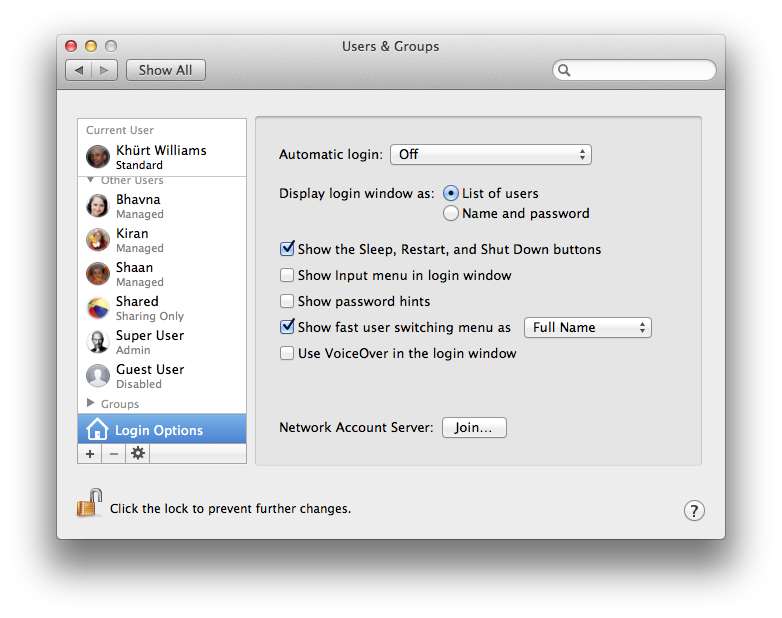
One more thing. Automatic Login is an OS X feature that is designed to help users quickly login. However, having a computer automatically log in bypasses a major security feature (the login) and can allow a casual user access to sensitive files in that user’s home directory. Turn it off.
I hope you find these tips useful to getting your Mac in a more secure state.
This article originally appeared on Island in the Net.