Health & Fitness
I Have a Confession to Make
A iPhone photography app tutorial using Camera+ and Snapseed apps.


I’m a photo app junkie. There, I said it. It’s out in the universe now. I’m okay with 17 photo apps. (Did I hear a gasp?) I actually have room for 7 more on my home screen but I don’t want to get ridiculous, really.
I have to blame Instagram. They started this whole addiction. In case you don’t know what Instagram is, it’s a photo sharing social media service. Here is Wikipedia’s definition:
"Instagram is an online photo-sharing and social networking service that enables its users to take pictures, apply digital filters to them, and share them on a variety of social networking services, such as Facebook or Twitter.[4] A distinctive feature is that it confines photos to a square shape, similar to Kodak Instamatic and Polaroid images, in contrast to the 16:9 aspect ratio now typically used by mobile device cameras."
Find out what's happening in Irmo-Seven Oaksfor free with the latest updates from Patch.
It started as a quick way to enhance photos that you take on your smart phone but has evolved into a social media in it’s own right. Many professional photographers as well as digital artists now share on Instagram and it is a visual feast. I’ve always been interested in photography and so they planted the little seed that quickly took root. Kind of like the bamboo that all of sudden has shown up in my back yard. Where did it come from and why does it look like an alien? But, I digress.
My go-to apps are Snapseed and Camera+. I use them about 90% of the time when I am editing my photos. I usually post everything on Instagram and so that is the last opportunity to edit as they have 20 filters within their app. A bit of advice, it pays to read the reviews of any apps your are interested in. It helps you to weed out the apps that either don’t work well or may duplicate what you already have.
Find out what's happening in Irmo-Seven Oaksfor free with the latest updates from Patch.
I took a picture of this abandoned house on Collins Dr. this past weekend and I’m going to show you a little step by step on how to edit your photo to get something interesting and hopefully pleasing.
More advice: Please respect No Trespassing signs and always get permission from owners to take photographs if at all possible.
1. Open up your photo in your Camera+ app. Crop your photo. I usually crop mine into squares because that is the format that Instagram takes.
2. Now click the Clarity tool within the Scenes tab to sharpen your image. Click Done and save. There are 16 "Scenes" filters in Camera+
3. Re-open the image and within the same Scenes tab click Night. Click Done and Save again. See how the photo has brightened up considerably. You have a much better view of the door and windows now.
You can now take this pretty basic image and really have some fun.
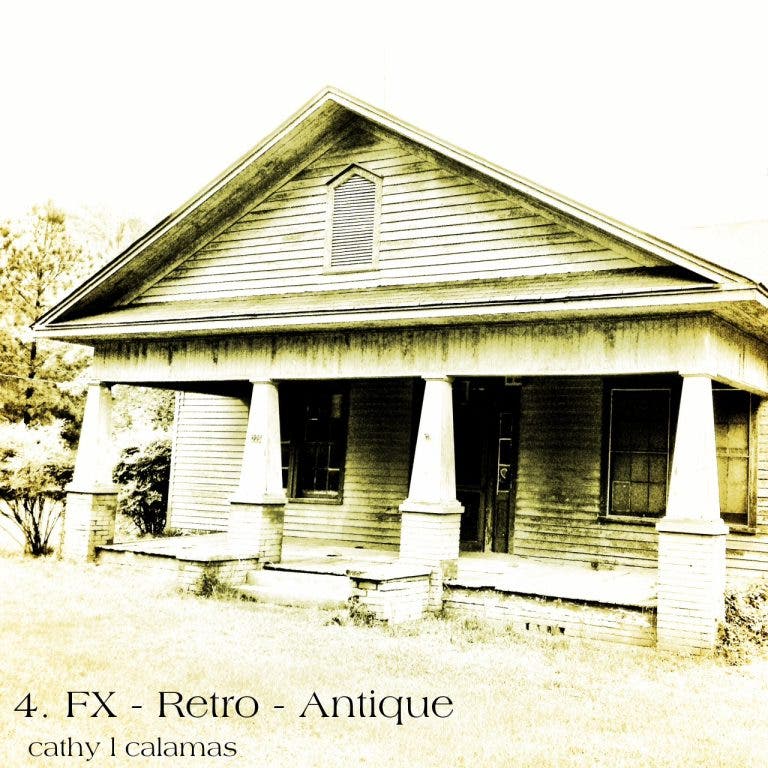
4. Re-open image and within the FX effects tab, click Retro and then Antique. Click Done and Save. I like this but not what I am aiming for.
5. Again, using the basic image from step 3: open again and use the FX effects - Retro – Toy Camera to get this image. Click Done and Save. I love this effect. Reminds me of a photo that had water spilled on it. But, I’m still not finished.
Now we are going to take the image from step 5 and open it in the Snapseed app. There are 14 filters within this app with minor tweaking that can be done within each filter.
6. Apply the Retrolux filter (-32) . The Done command in this app is accomplished by hitting the right hand arrow at the bottom of your screen. Save it by hitting the arrow in a box at the top right corner. Looks like that wet photo was left in the sun on the porch to dry out.
You can stop after any of these steps if you achieve the look you are going for. I wanted my picture to have that aged, old photo album look. You know the kind of albums with black stiff paper and corner tabs, that Gramma used to have. I found one of these photo albums at a yard sale with pictures and all in it. I was shocked that they were selling it with family photos but they found a good home with me.
7. I took the image from step 6 and applied the B/W filter. You can alter the brightness of the photo by sliding your finger across the photo. I wanted it to be pretty bright and washed out. I am really happy with the finished image here. I can imagine all sorts of stories that could be written about this house.
And isn’t a picture worth a 1000 words?
Come back and visit next time and we'll dish more apps. Yum!