This post was contributed by a community member. The views expressed here are the author's own.

Health & Fitness

Quick CLICK Tips

The wait is over! I have some new goodies for you. Let's get started!

TIP #1: Single-Click or Double-Click?

The number one question I get from my clients is "How do I know when to single-click or double-click?" This is definitely confusing because there is very little rhyme or reason to it. Here are some rules to go by:
RULE 1: Don't double-click when you're on the Internet (Internet Explorer, Firefox, Safari, Google Chrome). Links, buttons, tabs, toolbar icons, and everything else you're likely to encounter on the Internet require one click and one click only.
RULE 2: Do double-click program icons on your desktop (when you want to open those programs) and files/folders you want to open.
NEAT TRICK: Disable double-clicking altogether and eliminate the need to ever double-click again! (Ask me how if you're interested!)


TIP #2: Triple-Click

Yes, there is such a thing as a triple-click. Don't worry, you probably will not use it much at all. But I wanted to mention it because it can be useful in certain situations. Triple-click (quickly) anywhere within a line or paragraph of text to select an entire sentence or string of words. Try it right now with this sentence to see what happens. Also, try it in the address bar of your web browser. Triple-click the text inside the address bar and the entire string of text will become highlighted/selected. Now you can type a new address right over it.

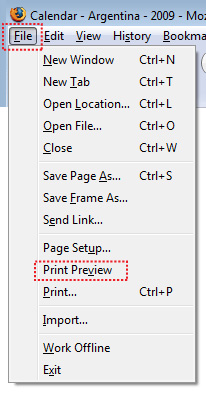
TIP #3: Print Preview

Want to know what your printed pages will look like before you print (and wind up with unnecessary blank pages)? Choose Print Preview instead of Print when you go to print your document. You will see exactly what you're printout will look like and how many pages it will be. Then you can decide which pages to print, as well as other options...ask me how at our next lesson!

The views expressed in this post are the author's own. Want to post on Patch?