Health & Fitness
Bring Misplaced Off-Screen Windows Back to Your Desktop
Have you ever hooked up your laptop or computer to a secondary monitor and then disconnected without remembering to move the windows back to the primary desktop?

If you’ve ever hooked up your laptop or computer to a secondary monitor and then disconnected without remembering to move the windows back to the primary desktop, you’ve probably encountered this problem:
The application is running. You can see it in the taskbar, but you can’t see it on the screen because it still thinks it’s running on the secondary monitor. You try and use right-click, Move, but that doesn’t do anything, and the window doesn’t move anywhere. You end up rebooting and cursing Microsoft.
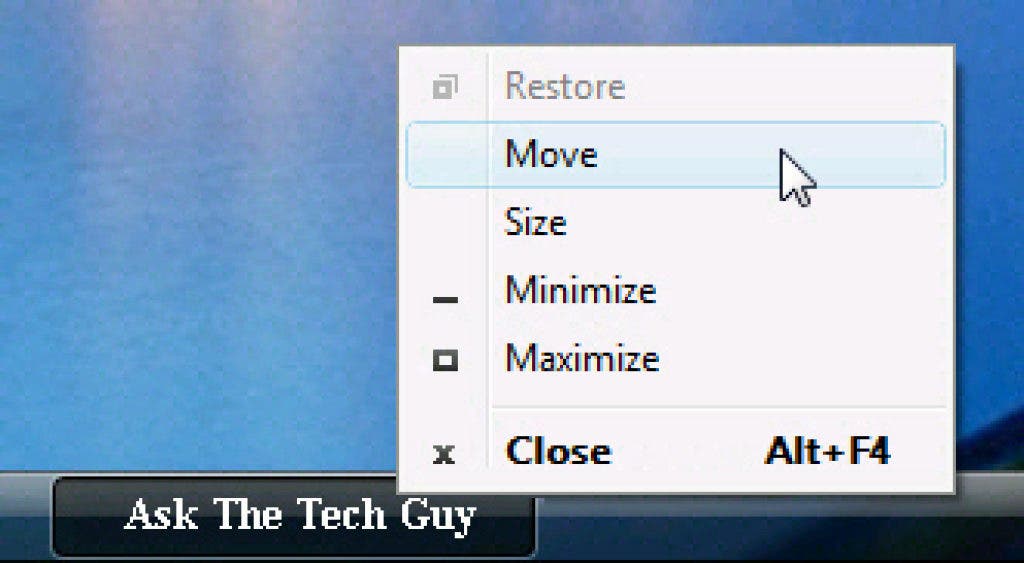
There’s a simple trick to get around this. First make sure you’ve alt-tabbed to the window, or clicked on it once to bring it into focus. Then right-click on the taskbar and choose Move. (Photo1)
Find out what's happening in Northamptonfor free with the latest updates from Patch.
At this point, you should notice that your cursor changes to the “Move” cursor, but you still can’t move anything. (Photo2)
Just hit any one of the arrow keys (Left, Right, Down, Up), move your mouse, and the window should magically “pop” back onto the screen.
Find out what's happening in Northamptonfor free with the latest updates from Patch.
Note: For keyboard savvy people, you can just alt-tab to the window, use Alt+Space, then M, then Arrow key, and then move your mouse.
This should work on any version of Windows. It’s really amazing how many people are not aware of this little trick.
Update: Note that you can also right-click on the taskbar and choose to Cascade your open windows, which will often help bring the windows back onto the screen.